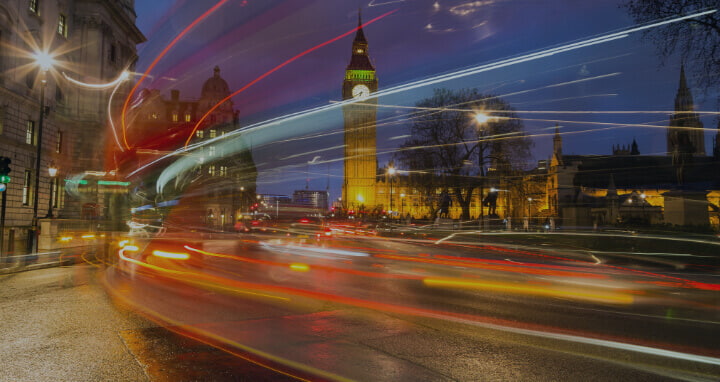

Download this year's beautiful images each month, directly to your desktop or smartphone
Each year we invite street custodians, address custodians, GIS officers, other local government staff, and their families to submit their favourite images capturing the local places they help manage and maintain. 12 winning photographs are selected to feature as our official monthly calendar images, one for each month.
These images are used as digital wallpaper downloads and are also showcased across the GeoPlace network, celebrating the connection between local areas and their associated Unique Property Reference Numbers (UPRNs) or Unique Street Reference Numbers (USRNs).
View and download the images below.

GeoPlace calendar: January 2026
How to download and set as your desktop background image
GeoPlace calendar: February 2026
How to download and set as your desktop background image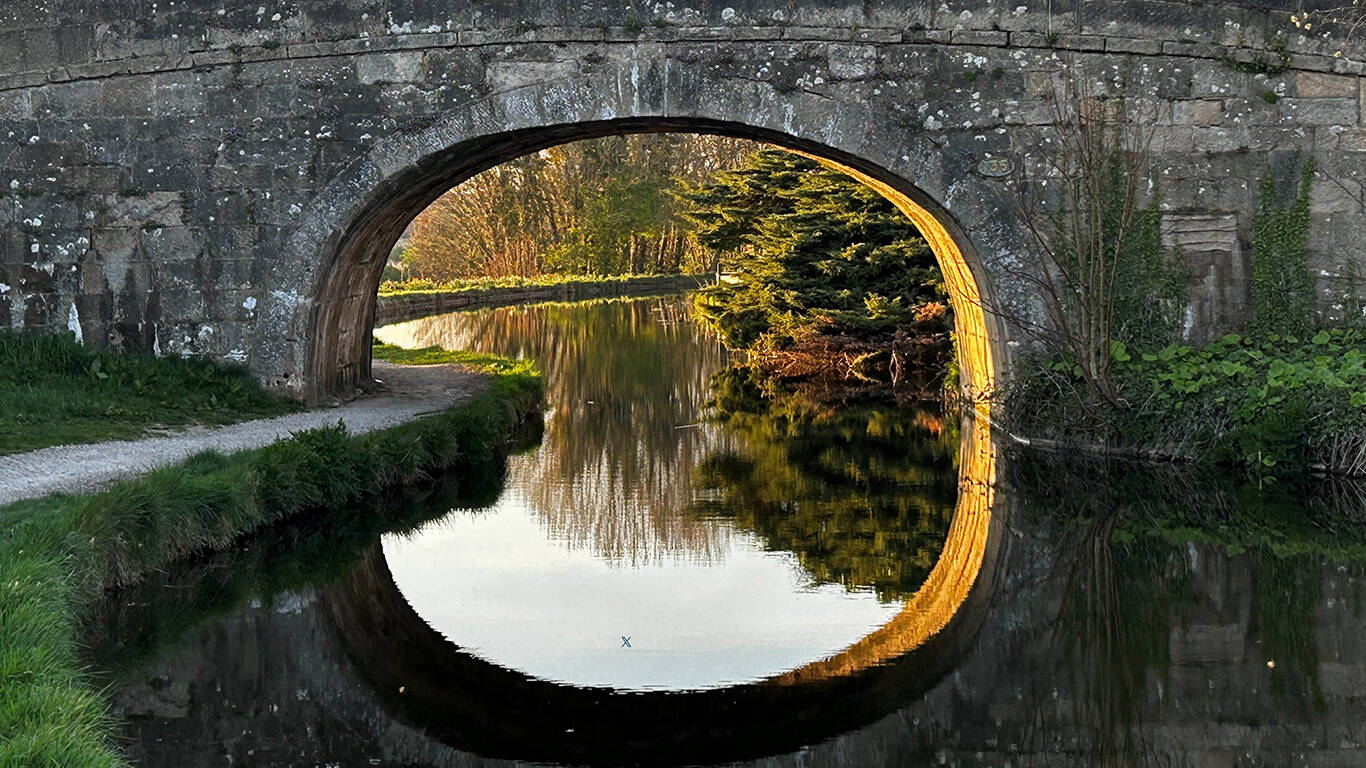
GeoPlace calendar: March 2026
How to download and set as your desktop background image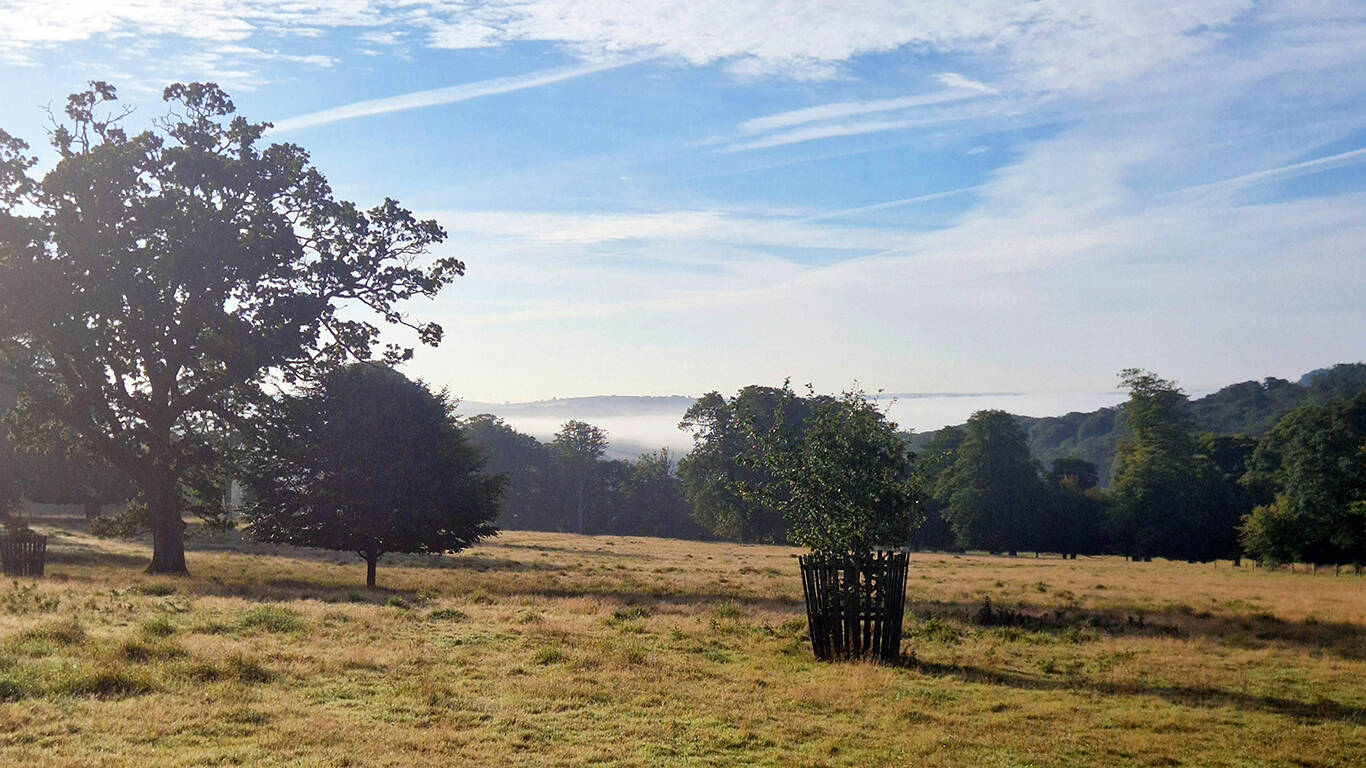
GeoPlace calendar: April 2026
How to download and set as your desktop background image
GeoPlace calendar: May 2026
How to download and set as your desktop background image
GeoPlace calendar: June 2026
How to download and set as your desktop background image
GeoPlace calendar: July 2026
How to download and set as your desktop background image
GeoPlace calendar: August 2026
How to download and set as your desktop background image
GeoPlace calendar: September 2026
How to download and set as your desktop background image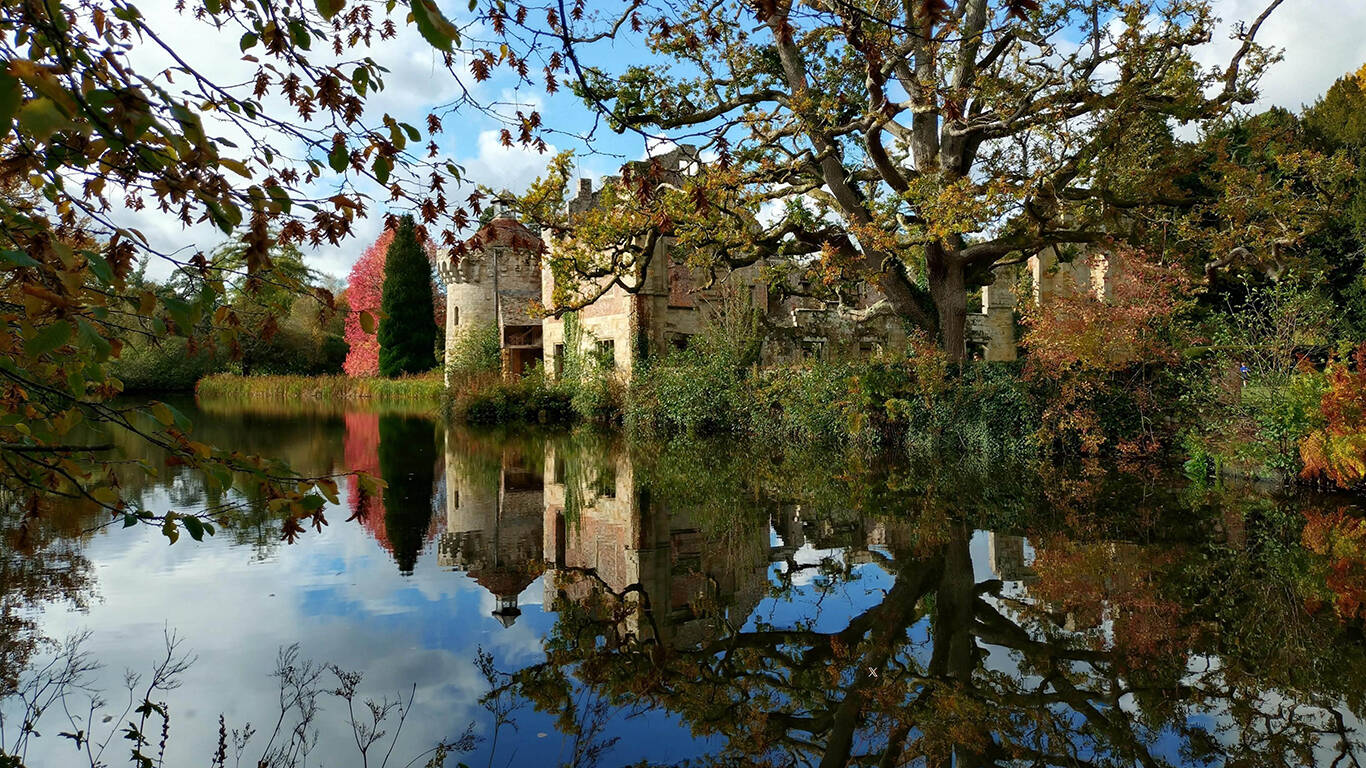
GeoPlace calendar: October 2026
How to download and set as your desktop background image
GeoPlace calendar: November 2026
How to download and set as your desktop background image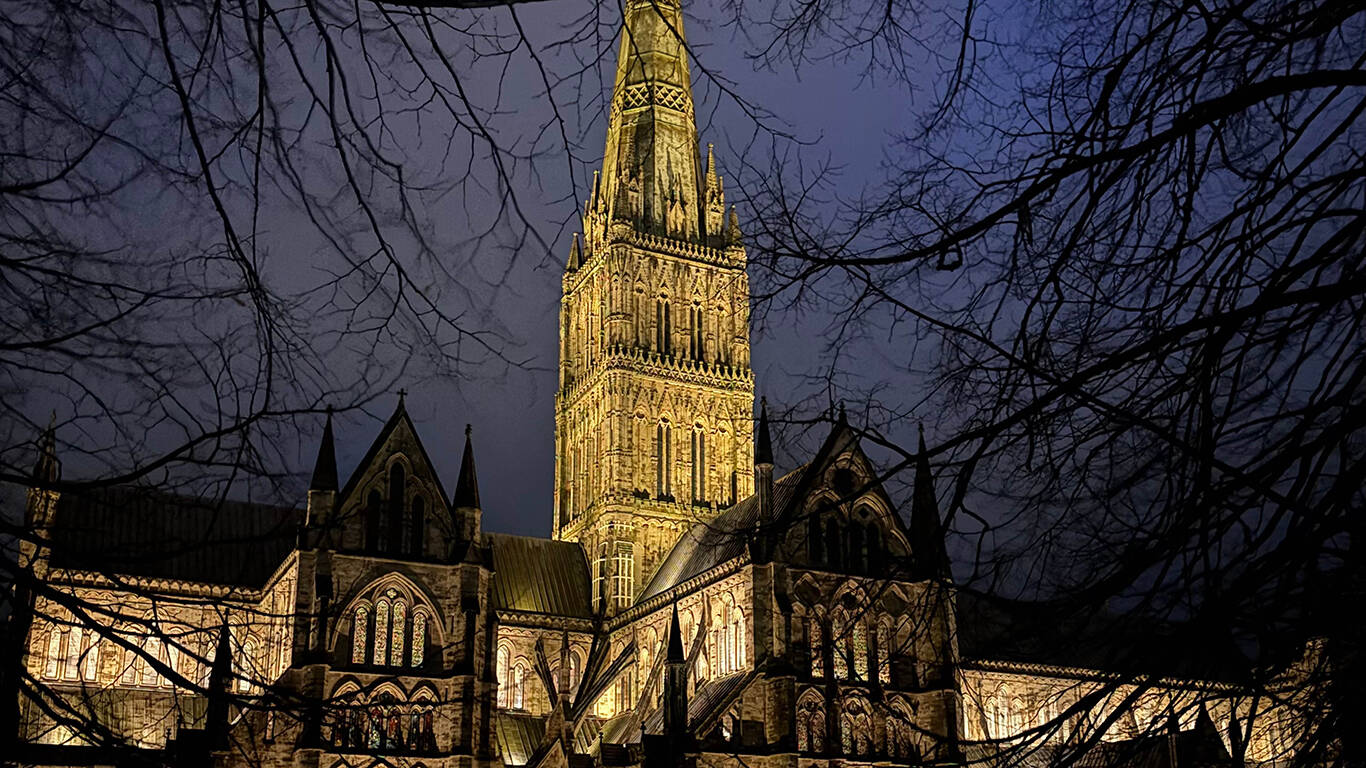
GeoPlace calendar: December 2026
How to download and set as your desktop background imageWallpaper Instructions
To save the image on a computer, right-click (or alt-click) and select 'save target as' or the equivalent for your browser. For most computers, right click the desktop and select 'set wallpaper' to change the wallpaper / background image. For iOS devices, select the image, press and hold on the image to 'save image', then go to Photos > Share > Set as Wallpaper. On Android devices, select the image, long press to 'download image' and then go to wallpapers > My photos and select the image.
Did you know, if you have saved multiple wallpaper / background images and use a Windows 10 computer, you can set the wallpaper / background to change automatically on a regular basis
In Windows 10:
- Save all the images to a specific folder, such as My Pictures > Wallpapers
- Go to Settings > Personalisation
- Select Background
- Change the background setting to 'Slideshow'
- Click the 'Browse' button and choose the folder with the images
- Select options, such as how often to change the image
